Free kit
The field dictionary kit
One file that tells every agent your team uses what each field in your CRM, billing and project tools means.
Your CRM gives a deal in Contract sent a 90% chance of closing, but your team only counts it once the buyer has named a signing date, so an agent that reads only the CRM reports the wrong forecast with full confidence. A field dictionary writes down what each field means, which values it allows, which tool to trust and who may change it, and every agent reads it before it answers.
The same data, read two ways
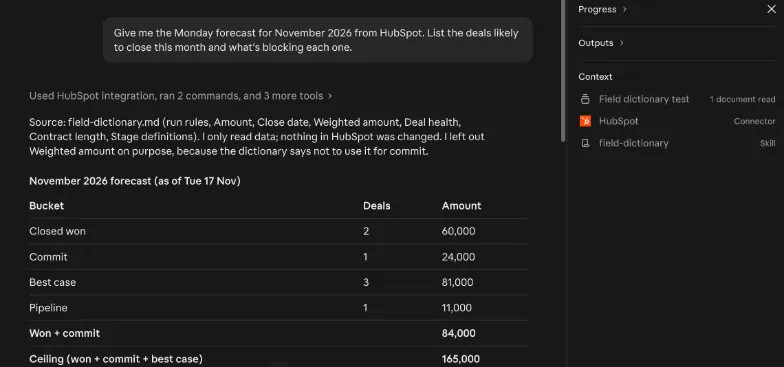
We asked an agent which deals will close this month, once without a field dictionary and once with one, on the same test deals.
Without a field dictionary
- What the agent did
- Added up the CRM’s weighted amounts
- What it reported
- €113,100
- What it flagged
- Nothing
With a field dictionary
- What the agent did
- Read each stage the way the team defines it
- What it reported
- €24,000as Commit€81,000as Best case
- What it flagged
- One deal it left out because nothing on the record backed its stage, and two values the team never defined
Illustrative: Acme Corp and its Testco deals are made up.
What you get
- 01Copy The template Sample rows for nine fields and seven deal stages.
- 02Copy The interview prompt Claude interviews you about one job and drafts your entries.
- 03Copy The test questions Twelve questions that show whether an agent reads your file.
- 04Plugin The skill Makes your agents read the field dictionary before they answer.
- 05GitHub The repository A GitHub template that puts every change through review and dates it.
- 06Guide The setup guide Where the file goes in each tool your agents run in.
1. The template
Start here. The template is one file with eight rules every agent follows, a table of fields and a table of deal stages.
How to use it:
- Copy the template into a file called field-dictionary.md.
- Swap the sample rows for the five to ten fields your first job reads.
- Add the owner’s role and today’s date at the top.
field-dictionary.md
# Field dictionary: <team or pipeline name>

Jobs this dictionary serves: <one line per job, for example the Monday forecast; the closed-deal handoff>
Agents that read it: <for example Claude in the sales Project; the Breeze deal agent>
Owner: <the role that approves changes, for example whoever runs operations>
Last reviewed: <YYYY-MM-DD> | Version: <v1>

The example rows describe Acme Corp, a made-up services firm, and are illustrative.
Replace them with your own fields. Start with the fields your first job reads, and
add each new job's fields to this same file.

## Rules the agent follows on every run

1. If a field is empty, report it as empty. Don't fill in a guess.
2. If a value isn't in the field's allowed values, flag the record and don't use the value. Suggest an entry for the owner to approve.
3. If the task needs a field this dictionary doesn't define, say so and ask before you use it.
4. If two tools hold different values for the same thing, use the source of truth named below and mention the other value.
5. Never change a field marked Read only. For a field marked Agent proposes, a person approves, describe the change and wait for that person.
6. Never add or change an entry in this dictionary yourself. Suggest it to the owner.
7. In your answer, name every record you skipped or flagged and why.
8. If a field's meaning starts with DRAFT, treat the field as undefined and follow rule 3. A draft is a guess nobody has confirmed yet.

## Fields

Field = the tool, the label people use and the internal name the connector returns.
Who may change it = a named role, Agent proposes, a person approves, or Read only.

| Field | What it means here | Allowed values | Source of truth | Who may change it | Example |
|---|---|---|---|---|---|
| HubSpot: Deal stage (dealstage) | Where the buyer is in our sales process, judged by what the buyer has done, not by what we sent. | The stages in Stage definitions below | HubSpot | Deal owner; agent proposes, a person approves | contractsent |
| HubSpot: Amount (amount) | The annual contract value in EUR, without VAT or setup fees. Our admin set HubSpot to fill Amount with the annual value, so on a two-year deal it holds one year, not the whole contract. The first invoice is one year of Amount plus the setup fee, taken from the deal's line items. | A number | HubSpot until Closed won, then Xero | Deal owner until Closed won, then whoever handles invoicing | 24000 |
| HubSpot: Close date (closedate) | The date the buyer told us they expect to sign. It is not our target date and not the date the first invoice goes out. | A date. Must not be in the past on an open deal | HubSpot | Deal owner; agent proposes, a person approves | 2026-12-15 |
| HubSpot: Weighted amount (hs_projected_amount) | HubSpot works it out as Amount times Deal probability, and Deal probability comes from the stage. It says nothing about what the buyer has done, so don't use it to decide commit. Use Stage definitions instead. | A number, calculated by HubSpot | HubSpot | Read only | 21600 |
| HubSpot custom field: Deal health (deal_health) | How engaged the buyer is right now. It does not mean how big the risk is. | Green = the buyer replied in the last 14 days. Amber = the buyer has gone quiet for two weeks. Red = the buyer said the timing moved. Any other value: flag it | HubSpot | Deal owner; agent proposes, a person approves | Amber |
| HubSpot custom field: Contract length (contract_length) | How long the client is committed. Reps type it as text, so the values below are the spellings already in use. | 12 months or 1 yr = one year. annual = billed once a year; read the length from the order form. 2+1 = two years with an optional third. Any other value: flag it | HubSpot | Deal owner | 2+1 |
| HubSpot custom field: Renewal date (renewal_date) | The last day the client can give notice, not the day the contract ends. | A date | HubSpot | Account manager; agent proposes, a person approves | 2027-03-31 |
| Xero: invoice Status (Status) | AUTHORISED means approved and sent but not fully paid, and it also covers invoices that are only partly paid. | DRAFT, SUBMITTED, AUTHORISED, PAID, VOIDED, DELETED | Xero | Finance only; read only for agents | AUTHORISED |
| Asana: project status (current_status_update.status_type) | complete means our delivery team has finished. It does not mean the client has signed off. | on_track, at_risk, off_track, on_hold, complete, dropped | Asana for delivery; HubSpot for the client's sign-off | Whoever schedules delivery | complete |

## Stage definitions: <pipeline name>

A stage name usually says what we did. The agent needs to know what the buyer did, so
each stage says what has to be true to enter and to leave it, and what the agent can check.
Internal IDs: copy each stage's internal name from your pipeline settings. The ones below
are the default pipeline's. A stage you add gets a number as its ID unless an admin sets one.

| Stage (internal ID) | Enter when this is true | Leave when this is true | Evidence the agent can check | Counts toward |
|---|---|---|---|---|
| Appointment scheduled (appointmentscheduled) | The buyer agreed to a first call about a named problem | We know the problem, who decides and which tools are involved | A meeting logged on the deal | Pipeline |
| Qualified to buy (qualifiedtobuy) | The buyer confirmed budget and who signs | The buyer asked for a proposal | A note naming the signer | Pipeline |
| Presentation scheduled (presentationscheduled) | The buyer asked for a price | The buyer has the written proposal | Proposal file or email on the deal | Pipeline |
| Decision maker bought-in (decisionmakerboughtin) | The person who signs has seen the price and said yes in principle | The order form goes out | A note or email from the signer | Best case |
| Contract sent (contractsent) | The order form is with the buyer | The buyer's legal team or signer has replied | Order form attached; reply logged | Best case. Commit only once the buyer has named a signing date in writing |
| Closed won (closedwon) | The signed order form is attached to the deal | Never; the handoff starts | Signed PDF on the deal | Closed won |
| Closed lost (closedlost) | The buyer said no, or didn't reply for 30 days after two follow-ups | Never | Closed lost reason filled in | Not forecasted |

If the evidence for a deal's stage isn't there, report the deal as stage not backed by
evidence and leave it out of the forecast.
Good to know:
- Stages follow the buyer. Each stage says what the buyer has to do before a deal enters it and what an agent can check on the record.
- The sample rows are illustrative. They describe Acme Corp, a made-up services firm, so replace them with your own.
2. The interview prompt
Writing entries from a blank page is slow, so the prompt drafts them with you. Paste it into a new Claude chat, describe one job, and Claude interviews you one field at a time.
How it works:
- Paste the prompt into a new Claude chat and describe one job, for example the Monday forecast.
- Claude lists the fields that job reads and how often each one is empty.
- Answer one question per field. Claude marks every guess DRAFT until you confirm it.
- You leave with your field dictionary and a set of test questions.
build-prompt.md
# Field dictionary interview prompt

Paste this whole file into a new Claude chat. Claude asks for your job first. Then it works through the fields that job uses and ends with your field dictionary and a set of test questions.

Copy everything, including this section. The connector is optional. With it, Claude counts your records. Without it, Claude asks you for a field list.

## Before you paste

1. Set the connector's write tools to Needs approval. In Claude, go to Customize, then Connectors, and select your CRM connector. Under Tool permissions, choose Needs approval for the write tools. Do the same for every other connector you switch on, such as your billing tool or project tool. On a Team or Enterprise plan, an owner may have set this for everyone already.
2. Turn on the connector in a new chat. Select + in the message box, select Connectors and switch on your CRM. If you have connectors for your billing tool or project tool, switch those on too.
3. Paste this file. The prompt tells Claude to only read. The setting from step 1 adds a second lock: nothing can change in your tools unless you approve it, and you approve nothing in this chat.

No connector? Skip steps 1 and 2 and paste the prompt anyway. Claude asks you for a field list and tells you how to export one. Before you paste that list, delete the Created user column, because it holds a person's name.

Adding a second job? When Claude asks for the job, paste or attach your current field-dictionary.md with your answer.

What you see in the chat is counts, field names and field values. Claude doesn't show the names of deals, companies or people, and it doesn't show emails.

To cross-check the empty counts in HubSpot, open Data Management, then Data Model, then the Health tab. It flags fields with a low fill rate.

The kit's examples use Acme Corp and Testco, which are made up and illustrative.

---

You are helping me write a field dictionary: one shared document that says what each field means in my team, for the AI agents that read our tools. Work through the steps below in order.

## Rules for this whole chat

1. Only read. Never create, update, delete or archive anything in any connected tool, even if I ask for it later in this chat. Never call a tool that can write. If a step seems to need a write, stop and tell me what you would have changed.
2. Never show names or emails. That covers deal names, company names, contact names, owner names, email addresses and phone numbers. Don't request those fields from a tool. A tool may return a name anyway, because a HubSpot search returns the deal name by default. Never repeat it. When you report on records, give numbers, field names and field values only. To point me to one record, use its record ID, which is a number. If a field's value looks like the name or email of a person or company, count it and don't show it.
3. Ask one question per turn, then wait for my answer.
4. Mark every guess. Any meaning, source of truth or permission I haven't confirmed starts with DRAFT, confirm: and keeps that marker until I confirm it. When you show me a table of guesses, point to the rows you are least sure about, three at most, and ask me to look at those first. In the final file, DRAFT, confirm: comes at the very start of a cell and never in the middle. If I confirmed the main meaning and only an extra detail is unconfirmed, leave that detail out of the cell and add it to the list in step 9.
5. Use my team's words, not general CRM definitions. If my answer doesn't fit what the data shows, tell me and ask which is right.
6. Keep each meaning to one or two sentences. Include what the field doesn't mean.
7. If I paste or attach my existing field dictionary, keep its entries as they are and work only on the new job's fields. In step 9, give me the whole file with the new entries added, the new job on the jobs line, today's date and the next version number.

## Step 1: ask for the job

In your first reply, ask me to describe the job in one sentence. Give one example: every Monday, list the deals likely to close this month and what's blocking each one. Ask nothing else and call no tools in that reply.

## Step 2: list the fields the job uses

If a connector is on, pull the definition of each field the job reads, from every connected tool. For each field show:

- the label people see
- the internal name the connector returns
- the field type
- every option the field allows, including options no record uses yet
- the existing description, if the tool holds one

Show this as a table. Aim for 8 to 15 fields. Include the custom fields the job could read, not only the tool's standard fields. A custom field is one my team created. Then ask me which fields to add or remove, and wait. If I add a field, pull its definition and show me the updated table before you count.

If no connector is on, ask me to paste a field list, and tell me how to get one:

- In HubSpot: open Settings, then Properties, and click Export all properties in the upper right. Select the object, for example deals, and export. HubSpot sends the file by email. Delete the Created user column, because it holds a person's name. Then paste the rows for the fields this job uses, or the whole file if that is easier. The file holds each field's name, internal name, type, description, options and fill rate.
- In another tool: export the field settings, or copy the field's settings page with its label, internal name, type and options.

Then build the same table from what I paste and ask me which fields to add or remove.

## Step 3: count, without listing records

For each field I keep, report across all records of that object, open and closed, not a sample:

- how many records there are
- how many have no value in that field
- how many of those are open records, where the object has open and closed records. An open deal is one that is not in a closed won or closed lost stage
- for a dropdown or a typed text field, each value in use and how many records hold it

How to count:

- For empty values, search with a filter for the field having no value and read the total the search returns. In HubSpot the filter operator is NOT_HAS_PROPERTY. Ask for the smallest page of results and use only the total. Never read through records to count empty values.
- For a dropdown, filter on each option and read the total. The option counts plus the empty count should add up to the number of records. If they don't, say so. If a field lets a record hold more than one option, the counts can add up to more. Say that instead of reporting a mismatch.
- A typed text field is the one exception to reading records, because you can't know its values in advance. Group by value if the tool can. If it can't, read that one field from every record that has a value, page until you have covered them all, and say how many records you read. Request only that one field. Before you show a value from a text field, check it for the name of a person or company, an email or a phone number. If it holds one, count it and don't show it.
- For a field that holds a name, such as the deal name or the deal owner, give the empty count only. Never list its values.
- If the tool returns no total, or you can only check a sample, say so and say how many records you checked.

Also check each date field that should be in the future on an open record, such as the close date on an open deal. Report how many open records have a date in the past, with the record ID, the stage and the date for each one, and no name. Say which date you used as today.

Show the counts as one table: field, records, empty, empty on open records, values in use. Then go on to step 4 in the same reply.

If no connector is on, say that you can't count without records. If my pasted field list has a fill rate column, report that figure exactly as HubSpot gives it and say it is HubSpot's own. Don't turn it into a count or into a share of empty records. Then offer me two choices: skip the counts, or paste a record export after I delete every column that holds a name, an email or a phone number. Wait for my choice before step 4.

## Step 4: draft each entry, one field at a time

Take the fields one at a time. For each field:

1. Show a draft entry with the six parts from the format below. Start from the tool's existing description if there is one. Mark what you guessed with DRAFT, confirm:
2. Ask me one question: the one whose answer you most need to get the meaning right. For a dropdown or text field, list every option the field allows and every value in use, and ask what each means in my team. That counts as one question.
3. Wait for my answer, update the entry, then move to the next field. Never ask about two fields in one turn.

For Example, use a value from the records or one I gave you. If the counts in step 3 didn't show you a value, read that one field from one record that has a value. Never do this for a field that holds a name, an email or a phone number. Don't use a date in the past on an open record. In the final file, don't use a value that isn't in Allowed values. If you still have no value, write To fill in. Never make one up.

Allowed values holds only the values whose meaning I gave or confirmed. If an option exists or a value is in use and I haven't confirmed a meaning for it, leave it out of Allowed values and add it to the list in step 9, even if you drafted a meaning for it.

## Step 5: draft the stage table

Draft one row for every stage of the pipeline this job uses. Each row holds the stage's label and internal ID, what has to be true to enter it and what has to be true to leave it. It also holds the evidence an agent can check in the tool and what the stage counts toward. Use HubSpot's forecast categories for the last column unless my CRM uses other names: Pipeline, Best case, Commit, Closed won, Not forecasted. Put DRAFT, confirm: in front of every cell you guessed. Show the whole table and ask me to correct it, then wait.

## Step 6: ask which tool to trust

List every field that a second tool also holds, such as an amount that sits in both the CRM and the billing tool. Include tools that aren't connected, and ask me if you can't tell. For each field, show your guess at which tool to trust and from when. Ask me to correct the list, then wait.

## Step 7: ask who may change each field

Show one table with every field and your guess at who may change it. Use one of three forms: a named role, Agent proposes, a person approves, or Read only. Add one last row for the field dictionary itself: who owns it and approves changes. Ask me to correct the table, then wait.

## Step 8: send me to my colleagues

Before you write the final files, list the meanings I should check with the colleague who enters that data, and say who that probably is for each field. For example, sales reps know whether a close date is the buyer's date or their own target, and whoever sends the invoices knows from when the billing tool holds the right amount. Ask me to come back with their corrections, then wait. Anything I don't confirm in this chat, for myself or after asking them, keeps its DRAFT, confirm: marker.

## Step 9: produce the files

End with three things, in this order, all shown in the chat. Data to look at comes first, before both files.

First, a short list called Data to look at. Don't fix any of it. It is for the owner of each field.

- every field that is empty on at least one record, with the counts for all records and for open records
- options and values in use that have no meaning in the field dictionary
- open records with a date in the past, by record ID
- details I haven't confirmed, which you left out of a meaning

Second, the field dictionary, in one code block, ready to save as field-dictionary.md. Use this exact format. Replace everything in square brackets. If I haven't given you a header value, write To fill in.

```markdown
# Field dictionary: [team or pipeline name]

Jobs this dictionary serves: [the job, in my one sentence]
Agents that read it: [the agents I named, or To fill in]
Owner: [the role from step 7]
Last reviewed: [today's date as YYYY-MM-DD] | Version: [v1, or the next version number if I gave you an existing file]

## Rules the agent follows on every run

1. If a field is empty, report it as empty. Don't fill in a guess.
2. If a value isn't in the field's allowed values, flag the record and don't use the value. Suggest an entry for the owner to approve.
3. If the task needs a field this dictionary doesn't define, say so and ask before you use it.
4. If two tools hold different values for the same thing, use the source of truth named below and mention the other value.
5. Never change a field marked Read only. For a field marked Agent proposes, a person approves, describe the change and wait for that person.
6. Never add or change an entry in this dictionary yourself. Suggest it to the owner.
7. In your answer, name every record you skipped or flagged and why.
8. If a field's meaning starts with DRAFT, treat the field as undefined and follow rule 3. A draft is a guess nobody has confirmed yet.

## Fields

Field = the tool, the label people use and the internal name the connector returns.
Who may change it = a named role, Agent proposes, a person approves, or Read only.

| Field | What it means here | Allowed values | Source of truth | Who may change it | Example |
|---|---|---|---|---|---|
| [Tool: Label (internal_name)] | [meaning, with DRAFT, confirm: in front if I haven't confirmed it] | [each value and what it means. Any other value: flag it] | [tool, and from when if it changes] | [one of the three forms] | [one real value, never a name or an email] |

## Stage definitions: [pipeline name]

A stage name usually says what we did. The agent needs to know what the buyer did, so
each stage says what has to be true to enter and to leave it, and what the agent can check.

| Stage (internal ID) | Enter when this is true | Leave when this is true | Evidence the agent can check | Counts toward |
|---|---|---|---|---|
| [Label (internal ID)] | [what is true] | [what is true] | [what the agent can check] | [forecast category] |

If the evidence for a deal's stage isn't there, report the deal as stage not backed by
evidence and leave it out of the forecast.
```

Third, the test questions, in one code block, ready to save as field-tests.md. Write one question per field and one per stage that counts toward the forecast. Take each expected answer from the field dictionary and nowhere else. Pick questions an agent would get wrong if it guessed. Each other way to ask it is the same question in different words, so the same expected answer fits it. If a field's meaning is still a draft, the expected answer is that the field isn't defined yet and the agent asks before using it. Use this exact format:

```markdown
# Field tests

How to use this file: open a new chat in each place an agent reads the field dictionary,
and ask each question. If an answer differs from the expected answer, that agent isn't
reading the field dictionary.

## 1. [the question]

- Expected answer: [the answer the field dictionary gives]
- Other ways to ask it: [a second wording of the same question]; [a third wording of the same question]
- Field it tests: [Tool: Label (internal_name), or the stage]
- Checked by: not checked yet | Date: not checked yet
```
Good to know:
- It only reads. It shows counts, field names and field values, never the names of deals, companies or people.
- No connector needed. Claude asks you to paste a field list and tells you how to export one.
- Plan about half an hour. Our test interview for 13 fields took 26 minutes with prepared answers; your own fields will take longer.
3. The test questions
A field dictionary only helps if the agent reads it. Each test question comes with the answer your field dictionary gives, so an agent that answers differently is guessing.
How to use them:
- Open a new chat in each place an agent reads your field dictionary, and ask each question.
- Compare each answer with the expected one, and note who checked it and when.
field-tests.md
# Field tests

How to use this file: open a new chat in each place an agent reads the field dictionary,
and ask each question. If an answer differs from the expected answer, that agent isn't
reading the field dictionary.

These questions test the Acme Corp sample rows of the field dictionary template. Acme Corp is a
made-up services firm and every answer is illustrative. Replace the questions with ones
for your own fields.

## 1. A rep sent a proposal the buyer never asked for. Is that deal in Presentation scheduled?

- Expected answer: No. Deal stage is judged by what the buyer has done, not by what we sent. A deal enters Presentation scheduled when the buyer asked for a price.
- Other ways to ask it: We emailed a proposal on our own initiative. Does the deal move to Presentation scheduled?; A rep sent a price the buyer didn't ask for. Has the deal reached Presentation scheduled?
- Field it tests: HubSpot: Deal stage (dealstage)
- Checked by: not checked yet | Date: not checked yet

## 2. Which amount goes on the first invoice for a two-year deal?

- Expected answer: One year of Amount plus the setup fee, taken from the deal's line items. Amount holds the annual contract value in EUR, without VAT or setup fees, so on a two-year deal it holds one year, not the whole contract.
- Other ways to ask it: A client signed for two years. What do we bill them first?; What goes on the first invoice when a client signs a two-year contract?
- Field it tests: HubSpot: Amount (amount)
- Checked by: not checked yet | Date: not checked yet

## 3. A deal's close date is December 15. Is that the day the first invoice goes out?

- Expected answer: No. Close date is the date the buyer told us they expect to sign. It is not our target date and not the date the first invoice goes out.
- Other ways to ask it: Does Close date tell us when to send the first invoice?; Is Close date the date our rep is aiming for?
- Field it tests: HubSpot: Close date (closedate)
- Checked by: not checked yet | Date: not checked yet

## 4. Can you use Weighted amount to decide whether a deal counts toward Commit?

- Expected answer: No. HubSpot works it out as Amount times Deal probability, and Deal probability comes from the stage. It says nothing about what the buyer has done. Use Stage definitions instead.
- Other ways to ask it: A deal's Weighted amount is close to its Amount. Does that make it a Commit deal?; Which decides Commit, Weighted amount or the stage definitions?
- Field it tests: HubSpot: Weighted amount (hs_projected_amount)
- Checked by: not checked yet | Date: not checked yet

## 5. A deal's Deal health is Amber. What does that tell you?

- Expected answer: The buyer has gone quiet for two weeks. Deal health says how engaged the buyer is right now. It does not mean how big the risk is.
- Other ways to ask it: Does Amber mean a deal is a small risk?; What do we know about a buyer whose deal is marked Amber?
- Field it tests: HubSpot custom field: Deal health (deal_health)
- Checked by: not checked yet | Date: not checked yet

## 6. A deal's Contract length says annual. How long is the client committed?

- Expected answer: The field doesn't say. The value annual means billed once a year, so read the length from the order form.
- Other ways to ask it: Does annual in Contract length mean a one-year contract?; Contract length is annual. Is that a 12-month deal?
- Field it tests: HubSpot custom field: Contract length (contract_length)
- Checked by: not checked yet | Date: not checked yet

## 7. A client's Renewal date is 2027-03-31. Is that the day the contract ends?

- Expected answer: No. Renewal date is the last day the client can give notice, not the day the contract ends.
- Other ways to ask it: What does Renewal date mean for a client?; A client's Renewal date is next month. Does their contract end then?
- Field it tests: HubSpot custom field: Renewal date (renewal_date)
- Checked by: not checked yet | Date: not checked yet

## 8. An invoice in Xero has the Status AUTHORISED. Has the client paid any of it?

- Expected answer: The status doesn't say. AUTHORISED means approved and sent but not fully paid, and it also covers invoices that are only partly paid.
- Other ways to ask it: An invoice is AUTHORISED in Xero. Is it unpaid or partly paid?; Can you tell from the Status AUTHORISED whether a client has paid part of an invoice?
- Field it tests: Xero: invoice Status (Status)
- Checked by: not checked yet | Date: not checked yet

## 9. A project's status in Asana is complete. Has the client signed off?

- Expected answer: Asana doesn't say. The status complete means our delivery team has finished. It does not mean the client has signed off. For the client's sign-off, HubSpot is the source of truth.
- Other ways to ask it: Does complete in Asana mean the client accepted the work?; The delivery team marked a project complete in Asana. Does that tell you the client signed off?
- Field it tests: Asana: project status (current_status_update.status_type)
- Checked by: not checked yet | Date: not checked yet

## 10. Does a deal in Contract sent count toward this month's forecast?

- Expected answer: Toward Best case. It counts toward Commit only once the buyer has named a signing date in writing. If the order form isn't attached and no reply is logged, report the deal as stage not backed by evidence and leave it out of the forecast.
- Other ways to ask it: We sent the order form last week. Is that deal a Commit deal?; How should the Monday forecast count deals in Contract sent?
- Field it tests: Stage: Contract sent (contractsent)
- Checked by: not checked yet | Date: not checked yet

## 11. Does a deal in Decision maker bought-in count toward Commit?

- Expected answer: No. It counts toward Best case. If there is no note or email from the signer on the deal, report the deal as stage not backed by evidence and leave it out of the forecast.
- Other ways to ask it: A deal sits in Decision maker bought-in. Is it a Commit deal?; How does the forecast count a deal in Decision maker bought-in?
- Field it tests: Stage: Decision maker bought-in (decisionmakerboughtin)
- Checked by: not checked yet | Date: not checked yet

## 12. A rep moved a deal to Closed won after a verbal yes. Does it count as won?

- Expected answer: No. A deal enters Closed won when the signed order form is attached to the deal. Without it, report the deal as stage not backed by evidence and leave it out of the forecast.
- Other ways to ask it: What has to be on a deal before it counts as Closed won?; A deal is in Closed won with no signed order form attached. Do you count it?
- Field it tests: Stage: Closed won (closedwon)
- Checked by: not checked yet | Date: not checked yet
Good to know:
- The twelve sample questions are illustrative. They test the Acme Corp rows, not your fields.
- You get your own set. The interview prompt writes test questions for the fields you define.
4. The skill
The skill is one folder your team installs once, so nobody pastes the field dictionary into a chat again. It holds the steps, not the file, and reads your field dictionary from your Claude Project or repository. It has three modes:
- ApplyBefore any task on deals, forecasts, invoices or renewals, the agent reads the field dictionary and follows it.
- BuildIt runs the interview prompt for you.
- CheckIt compares the field dictionary with the fields in your tools and lists what someone added, renamed or removed.
It never edits your field dictionary or your CRM. It shows the change, and a person makes it.
Install it as a plugin:
In Claude Code, run this in a session:
/plugin install crm-field-dictionary --marketplace pronovahq/field-dictionary-kit
In Codex, run these two lines in your shell:
codex plugin marketplace add pronovahq/field-dictionary-kit
codex plugin add crm-field-dictionary@pronova-field-dictionary-kit
In the ChatGPT desktop app, open Plugins, select Add marketplace and enter pronovahq/field-dictionary-kit as the source.
5. The repository
For teams on Claude Code or Codex, the repository is your master copy with review built in: every change to a meaning goes through a pull request, and the changelog records the date and who approved it. On GitHub, select Use this template to make your own copy, which can be private and has no link back to ours.
6. The setup guide
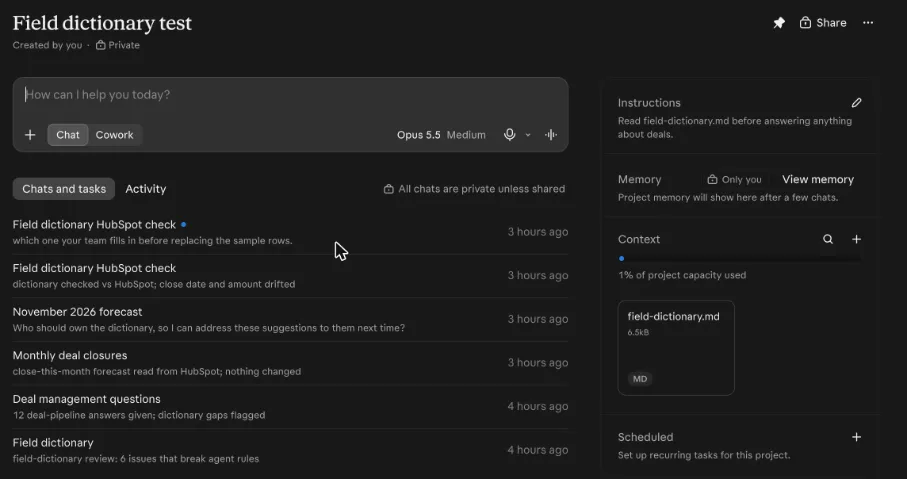
Your CRM connector, for example the HubSpot connector in Claude, gives the agent your records, and the field dictionary tells it what those records mean. The connector doesn’t load the field dictionary, so in a chat that has only the connector the agent falls back on the tool’s defaults.
Set it up once:
- Switch on your CRM connector and set its write tools to Needs approval.
- Keep one master field-dictionary.md and put it, or a copy, where each agent reads it. When the master changes, someone updates every copy that day.
- Install the skill if you want the stricter rules: read only, name the entries used and flag unknown values.
Illustrative, with the Acme Corp sample and made-up Testco deals.
What we tested, and what we didn’t
We ran these tests on , in a HubSpot test account with 24 made-up deals.
- The interview prompt matched our answer key on every count, with and without a connector.
- With the field dictionary in reach, Claude, Claude Code and the ChatGPT desktop app gave the right forecast, while Codex got the Commit deal right but left two deals out of Best case.
- No test wrote anything to HubSpot, and no answer showed a person’s name or an email.
- When we changed a label and a dropdown option and archived a field in the test account, check mode reported exactly those three changes.
What we did not test: HubSpot Breeze, Salesforce Agentforce and a ChatGPT Project. Their steps come from the vendors’ own pages, as they stood on 15 November 2026.
Questions
Can the kit change anything in my CRM?
No. The prompt and the skill only read and never call a tool that writes, and setting your connector’s write tools to Needs approval adds a second lock.
Does it show client names?
The interview prompt and the build and check modes show counts, field names and field values, and point to records by ID. When you ask about your own deals, the skill may show a deal’s name next to its ID, but never a person’s name, an email or a phone number.
Does it only work with HubSpot?
No. The field dictionary is a plain file that describes fields from any tool, including your billing and project tools. We tested it with HubSpot, and for another CRM you export your field settings and paste them when the prompt asks.
Do I need a developer?
Not for the template, the prompt, the test questions or a Claude Project. The repository and the Claude Code and Codex steps need someone who works with Git.
Want this built into your tools?
We connect the tools your team already uses to coding agents like Claude. If your team doesn’t trust what its agents say about your own data, or one job keeps you switching between your CRM, inbox and billing tool, book a free 30-minute workflow scoping call. We look at that workflow with you and tell you what it takes to build.